===============================
IGEL Universal Management Suite
===============================
Version 4.02.100
04.07.2012
===============================
Notes:
===============================
The linux installers are tested with
- Ubuntu 8.04 (32bit)
- Ubuntu 10.04 (32bit)
- RedHat Enterprise Linux 6 (32bit)

For further compatibility information check the Universal Management Suite
Data Sheet at www.igel.com.
===============================
New features
===============================
- [Server common]:
    - Tomcat server update to version 7.0.26
        * various vulnerabilities fixed
        * enhanced connection pool for jdbc connections
        * NOTE: tomcat log configurations changed; log4j.properties is now located in /rmguiserver/config folder
   - Memory limit for UMS Server increased to 768 MB.
- [Administrative Tasks]:
    - New aministrative task: remove thin clients from UMS automatically based on a "view".
    - New administraive task: export/delete logged events/messages. This task is a replacement for the export/delete functionality in UMS Administrator.
- [Shared Workplace Extension] A login history is available for SWP users.
- [Licensing]: License Deployment for IGEL Universal Multidisplay solution.
- [VNC Viewer] Enhancement: send ALT+CTRL+TAB via menu item.
- [UMS Console] Memory limit increased to 512 MB.
- [Configuration Dialog] new/enhanced setup pages
===============================
Fixed bugs
===============================
- [Server common] feature set labels of thinclients are not 'human readable'
- [Universal Firmware Update] the 'use system proxy' checkbox has been removed, the functionality was not stable.Use java properties instead:
"-Dhttp.proxyHost=youHost
-Dhttp.proxyPort=yourPort"
- [High Availabiliby Extension] Load Balancer version number is not updated after a UMS update.
- [UMS Console]
 - It is no longer possible to change the password of the database user through UMS Console. To change the password for the embeddedDB use corresponding button in UMS Administrator.
- Automatic checksum refresh is done for all 'files' defined in UMS Management Tree (refresh intervall is 30 minutes).
- UMS writes invalid values to display 'gamma correction' parameters in linux devices (comma instead of dot).
- [AD / LDAP integration] Import of administrative users from LDAP service failed if domain name contained 'dc=' section.
NOTE: this bug did NOT affect Microsoft Active Directory services!
- [Installer (linux)] start environment for RMAdmin: log file location depends no longer on working directory but is always rmguiserver/logs folder.
Archive for the ‘IGEL’ Category
New Version: IGEL Universal Management Suite 4.02.100
Friday, July 6th, 2012Want to learn more about the new UD2 Multimedia?
Friday, July 6th, 2012Learn more about our first System on Chip device – IGEL UD 2 – LX – MultiMedia
Sign in for the following webinars for free. Duration is around 60 minutes.
09.07.2012 09:00 10:00 (English)
https://www3.gotomeeting.com/register/571980462
10.07.2012 18:00 19:00 (English)
https://www3.gotomeeting.com/register/252757374
11.07.2012 09:00 10:00 (English)
https://www3.gotomeeting.com/register/541561622
12.07.2012 13:00 14:00 (English)
https://www3.gotomeeting.com/register/958049382
13.07.2012 09:00 10:00 (English)
https://www3.gotomeeting.com/register/426394958
Test units available now!
Cheers
Michael
UD2 MultiMedia (ARM) Beta features
Thursday, July 5th, 2012Here is some info about what you can and can not do with the just shipped ARM (1.01.500 Beta) devices from IGEL:
Citrix Receiver (12.2.0.203213)
USB Redirection NO
Multimedia Redirection YES (alpha)
Smartcard Authentication YES
DSP accelerated ICA YES
Flash Redirection NO (next SDK)
RDP/RemoteFX Client (1.6.0)
USB Redirection NO
Multimedia Redirection NO
Smartcard Authentication NO
RemoteApps Support YES
DSP accelerated RemoteFX support YES
VMware View (1.5.0)
Currently only the integrated standard VMware View client is integrated, which only provides limited acceleration through the SoC architecture.
Local media player accelerated through DSP
Supported Container: ASF, AVI, MPEG1, MPGE2
Supported Codecs: WMA, WMV VC1, MPEG3, MPEG4, H.264
Additional Clients/Tools
XDMCP, Leostream Java Connect, Appliance Mode, Firefox, SSH
Network
WOL, DNS, DHCP
Print Services
LPD, IPP, CUPS

The Acceleration Chooser Setup ist required to configure which type of content (ICA or RemoteFX) is accelerated through the DSP.
Sebastian
www.myigel.com down! Go to http://myigel.biz now!
Monday, July 2nd, 2012Hello Folks,
like already mentioned IGEL has closed www.myigel.com, the new download URL is http://myigel.biz.
Cheers
Michael
P.S.: Maybe it’s a good idea to point the old url’s to the new server…..
Update: IGEL has updated the old URL’s for the new server now.
Solved: New UD5 LX shows no screen @ display port if configured for dual monitoring and high resolutions
Wednesday, June 27th, 2012Today i played a little bit with resolution’s and dual monitor settings with a UD5. When using a high resolution (2 times 1920×1200, millions of colors) i got no screen on my second display connected via the display port.
I tested a couple of settings but finally i only need to increase the video memory in the BIOS to 256MB, after this both screens are available and the issue was gone. Funny, Windows ES/Windows 7 don’t need this configuration… To change the setting press DEL to enter the BIOS after you powered on the client. In the Advanced BIOS settings increase the shared video memory to 256mb and save the configuration, it’s quite simple to solve if you know it. 🙂
Cheers
Michael
Tested: Belkin Wireless G USB Network Adapter with IGEL Universal Desktop LX/OS
Wednesday, June 27th, 2012Today i tested the Belkin Wireless G USB Network Adapter (Ralink RT2573) with the IGEL Universal Desktop LX and OS system. In both cases the adapter works perfect for me, of course i can’t guarentee this at all.

I’ve tested the Version: Belkin F5D7050 (http://www.belkin.com/IWCatProductPage.process?Product_Id=179211) together with WPA2 /WPA.
Cheers
Michael
First pictures of the new IGEL LX Thin Client (System on a Chip)
Tuesday, June 26th, 2012Today i got the time to play a little bit with a new IGEL Thin Client generation. The client is Linux based (LX), comes with a ARM CPU and a digital signal processor (DSP) aka System on Chip (SoC).
The ARM based “system on a chip” technology comes with the benefit to provide a good multimedia experience for a low price. Of course you can’t compare it with a UD3/UD5 in the overall performance, but for multimedia content it can beat other devices in the thin client entry level segment. SoC was introduced by Citrix in 2011 and also Microsoft Remote Desktop Services have a clear advantage here.
The device was already introduced at the CeBit 2012 (Europe), the Microsoft TechEd North America (US) and the Citrix TechEx (Germany).
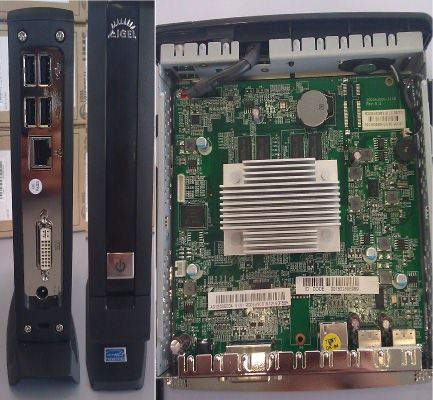
Specs:
CPU: Texas Instruments DM8148 ARM 1GHz
DSP: 750 MHz
RAM: 1GB DDR3 800MHz
Audio: Texas Instruments TLV320AIC3104
Network: 10/100/1000 Mbps Ethernet
Network Chipset: Realtek RTL8211E
Storage: 2GB eMMC
Display: DVI-I Port
Connectors: 4 x USB 2.0, Audio In, Audio Out
Available Sessions (Beta Firmware): Citrix ICA (incl. HDX), Microsoft RDP (incl. RemoteFX), VMWare View (no SuC support), Browser, local Media Player, Leostream and Appliance Mode support for Citrix XenDesktop and VMWare View
+ Price
+ SuC support for Citrix HDX and RemoteFX (VMWare View/PCOIP was not available during my tests, maybe upcoming?)
+ Multimedia performance
+ Managed with IGEL Universal Management Suite
– Overall performance (1)
– Less session types available compared to x86 based devices (1)
– Only USB Ports available; no serial,lpt or PS/2
Cheers
Michael
(1) = ARM technology related
Quick configuration for IGEL Linux based devices without the IGEL Universal Management Suite
Tuesday, June 26th, 2012Maybe you’re environment don’t need a UMS Server, UMS configuration is not possible or it’s just to small to setup an extra management server… A quick and easy configuration is also possible in environments like this, all you need is a FAT32 formatted USB Memory.
Note: If you want to deploy background pictures or firmware updates just create a folder on the USB Memory and place the files into this folder.
1) Setup the first thin client like you want it, enable at least one USB Device in the Devices->Storage Devices! If you want to use the USB Memory also to deploy firmwares, change the update settings to file and point to the folder on the USB Memory where the firmware or other files are placed. For all related settings point to the Update configuration (like background picture or in the flash player download configuration)!
2) Press ALT+CTRL+F11 and login as root, now execute “store_usbconfig”. You will be asked for the configuration name (you can store a couple of different configurations if required) and you’re done here.
3) Boot the client where you want to deploy the configuration and press ALT+CTRL+F11. Execute “load_usbconfig”, you will be asked to replace the existing configuration and after this you can select a configuration from the USB Memory. Reboot the device and execute the “update” command if you want to start the firmware update (needs to be configured and the firmware @ the USB Memory).
4) Proceed 3) at all clients where you want to deploy a configuration….
That’s it… If you want to switch back to the IGEL Desktop just press ALT+CTRL+F1.
Cheers
Michael
Creating more then one Internet Explorer (or other) session(s) with IGEL Windows based Thin Clients
Friday, June 15th, 2012Sometimes customers/users ask to have more then one Internet Explorer Session on the Desktop, by default this can’t be configured with the Internet Explorer configuration in the IGEL Setup / IGEL Universal Management Suite but there is a simple way to do this… With the Internet Explorer or any other session where the client do support command line parameters.
1) Just open the IGEL Setup or the Profile in the IGEL Universal Management Suite.
2) Go to System -> Firmware Customization-> Custom Application
3) Create a new custom application
4) Type in the Name and where the session should appear
5) In settings set (sample for Internet Explorer)
– Icon Name= c:\program files\internet explorer\iexplore.exe
– Application= c:\program files\internet explorer\iexplore.exe
– Parameter= https://blog.cloud-client.info (the site to open or other parameters)
You can do this for several sites and session types, the global settings for the session are still working in this sample but you are flexible to provide the user several direct start links on the desktop like in Linux.
Have Fun
Michael
Industrial PC’s with IGEL’s Linux OS incl. the IGEL Universal Management Suite
Friday, June 8th, 2012A lot of industrial company’s have a requirement for a tough PC that fit to an IP protection class against water, dust or other.
Most Thin Client Vendor’s can not provide this but there are 3rd party vendors that offer solutions like that. If you’re looking for a solution like that i can recommend two vendor’s at the moment:

1) Forsis http://www.forsis.de
2) DLog http://www.dlog.com with the MTC 6
Both vendors are using the IGEL Linux which perfectly fit’s into a existing thin client environment incl. the management solution from IGEL.
Cheers
Michael
ITAAS: IT as a Service with Citrix and IGEL Thin Clients (German)
Friday, June 8th, 2012This is how cloud computing can look like http://www.searchnetworking.de/themenbereiche/design/virtualisierung/articles/367184/ (German Article), sounds like a cool solution and iam sure we will see more offerings like this in the future.
Cheers
Michael
Fixed: IGEL LX/OS and images are Tinted Blue in Published Photoshop when using XenApp 6 (CTX128332)
Friday, June 8th, 2012In XenApp 6 environments it can happen that images are tinted blue in a published Photoshop session, for the Windows Citrix Receiver is a fix available which is mentioned here: http://support.citrix.com/article/CTX128332
To setup this for a Linux based IGEL Thin Client or a UDC converted device open the profile or IGEL Setup and set System->Registry->ICA->wfclient->enableoss to disable. In general tweaks like this can be found in the wfclient area in the IGEL Setup or the profile in the IGEL UMS. If a setting is not available it might be a good idea to contact the IGEL support to provide information’s like this to the IGEL development.
Cheers
Michael
Whitepaper: IGEL Universal Management Suite migration
Friday, June 8th, 2012Hello Folks,
i just uploaded a new whitepaper to papershare that demonstrates how to to migrate an exisiting IGEL UMS Installation to a new server. The download is available here: http://www.papershare.com/app/paper.aspx?id=2449&o=3736
Cheers
Michael
USB redirection with Citrix XenApp and Microsoft Remote Desktop Services
Wednesday, June 6th, 2012Did you ever ask the question what extended USB redirection in the IGEL product description means? No… It’s not USB redirection coming with VMWare View, XenDesktop or RemoteFX; this is included in the clients by default. It’s a solution called “USB for Remote Desktop” from Fabulatech. This solution was primary designed to offer USB redirection for Microsoft’s Remote Desktop Services.
Since the latest version it also support XenApp and it’s maybe a good add-on if you require “real” USB redirection for your users or devices with the benefit that you can configure all the devices from remote with the IGEL Universal Management Suite. To get more information’s have a look here: http://www.usb-over-network.com/partners/igel/
Important: In the IGEL firmware release notes you can see what version of Fabulatech USB for Remote Desktop is installed, on the Terminal Server’s the same or compatible Version is required; don’t try to mix it! You also need the Advanced Feature Set for the IGEL Thin Client to be able to use it.
Cheers
Michael
New Firmware: IGEL Unversal Desktop ES 2.11.102
Wednesday, June 6th, 2012IGEL Universal Desktop ES
=========================
Version 2.11.102
23. May 2012
Supported devices: UD3-x30 ES, UD5-x30 ES
================================================================================
Notes:
================================================================================
================================================================================
Drivers:
================================================================================
– OmniKey Cardman 3×21: 1.1.0.32
– Realtek RTL8139: 5.398.613.2003
– Realtek RTL8168: 5.782.0114.2011
– Realtek RTL8167: 5.663.1212.2006
– VIA WLAN VT6656: 1.69.0.1000
– RaLink RT73 USB: 1.00.04.0000
– VIA HD Audio VT1708B: 6.0.1.10400
– VIA VX855: 6.14.10.0.222
– VIA MSP I/O APIC: 6.0.00.0300
– VIA VX900: 6.14.10.0386
– RaLink RT 2500 USB: 2.01.01.0000
– RaLink RT2500 PCI: 3.02.00.0000
– RaLink RT61 PCI: 1.02.02.0000
– DLink DWA 131: 1084.12.0805.2009
– Intel Centrino WLAN N-1000: 15.1.0.18
– AMD PCnet Family: 4.38.0.0
– 3COM 3CR990 Fibre: 3.00.00.0023
– 3COM 3C900B-FL: 4.5.0.0
– Prolific PL-2303 USBtoSerial: 2.0.2.8
– FTDI UsbToSerial: 2.02.04
– Realtek HD Audio: 5.10.0.6343
================================================================================
Applications:
================================================================================
– .NET: 3.5 Sp1
– Ericom PowerTerm: 9.0.1.203
– Ericom WebConnect: 5.6.1.1000
– Sun JAVA RE: 1.6 Update 18
– VMware View Client: 5.0.1.640055
– Tight VNC Server: 1.3.10
– Fabulatech USB for Remote Desktop: 3.1.3
– Citrix PM Agent: 4.5.124
– Adobe Acrobat Reader: 5.0
– SAP GUI JAVA for Windows: 7.10 R 7
– NXClient: 3.4.0.7
– Thin Print: 7.0
– Citrix Receiver: 3.0
– Quest vWorkspace Client: 7.2
– Ekiga VOIP Client: 3.2.6
– NCP Enterprise Client: 9.30
– Client for RedHat RHEV-D: 3.0-26
– USB Redirection for RedHat RHEV-D: 3.0-26
– MS RDP Client: 7.0
– Internet Explorer: 8
– Windows Media Player: 11
– Leostream Connect Client: 2.7.129.0
================================================================================
New features:
================================================================================
– [System]:
– Basic printer configuration.
– Added creation of missing target path to UMS filetransfer
utility.
– Added keyboard layout support for Dutch/US
– [Driver]:
– Updated driver for VIA HD Audio.
– Updated VIA VX900 graphics driver.
Driver supports high Display Port resolutions
– [TCSetup]: Increased performance of local setup.
– [VMware View]: Updated VMware View Client to version 5.0.1.
– [NCP]: Updated NCP Enterprise VPN client to version 9.30.
– [FABULATECH]: Updated Fabualtech USB for Remote Desktop to version
3.1.3. By default the service is disabled, but can be
enabled through the local setup or UMS.
– [SPICE]: Updated Client for RedHat Enterprise Virtualisation for
Desktops to version 3.0-26.
================================================================================
Bug fixes:
================================================================================
Fixed bugs
– [System]:
– Fixed FBFW status after firmware reset. Used to be
disabled afterwards, but by default it should be enabled.
– Fixed transfer of folder permissions while transfering
files with the UMS file transfer utility.
– [Powerterm]: Fixed replacement of %h wildcard in powerterm session.
================================================================================
Known Issues:
================================================================================
– A device connected over WLAN cannot be scanned by UMS if the first
ethernet adapter is disabled in device manager.
– UMS-Agent BOOT commands:
* Get settings from UMS over WLAN fails at boot time
* Re-Registration of client after firmware update over WLAN
fails at boot time
-[FABULATCH]:
– Fabulatech USB for Remtote Desktop is currently
not working with XenDesktop.
– If it is used with the UD3-x30 it may cause some problems.
E.g.: System will not shutdown.
USB redirection issues
Wednesday, May 30th, 2012If you enable USB redirection for Citrix XenDesktop, VMWare View, Fabulatech or Microsoft RemoteFX the rule to enable USB redirection in general does not mean that this will redirect all USB devices now. You need also to setup class rules (Printers, HID..) or device rules to get it working.
Cheers
Michael
Configuring VMWare View Display settings
Wednesday, May 30th, 2012If you want to setup the monitor configuration for VMWare View sessions, you need to configure this thru the RDP Global configuration in the IGEL Setup or UMS Profile. It’s not really clear and i noticed this today in a workshop, so a good reason to post it here.
Cheers
Michael
Universal Desktop OS support for ATI Radeon HD 2400 XT
Friday, May 25th, 2012We just tested a ATI Radeon HD 2400 XT with the IGEL Universal Desktop OS and it work perfectly incl. dual monitor support. The ATI Radeon HD 2400 XT is used with a regular desktop pc.
Requirements: Universal Desktop OS incl. Advanced Feature Pack and feature “Native graphic card driver support enabled”
Cheers
Michael
IGEL UMD-Multimonitoring extreme or could I get one screen more please?
Friday, May 25th, 2012Do you need a workplace with more then two screens… Maybe 3, 4 or up to 8. Then you should try the IGEL Universal MultiDisplay solution which is available now. The solution is quite new and IGEL provides a small data sheet here: http://www.igel.com/fileadmin/user/upload/documents/PDF_files/Datasheets_EN/DS_UMD_85-EN-9-1.pdf
During my test with a trial version it works quite smart but i recommend to use a UD3 as satellite. Really a nice solution and much more flexible and cheaper then other available solutions. You can find the results from my first test’s here: https://blog.cloud-client.info/2012/03/07/cebit-2012-news-up-to-8-screen-on-a-workplace-with-igels-distributed-display-solution/
Minimum requirement is the Universal Desktop LX Firmware 4.09.200, a UD5 as master incl. the recommended network card (available in the starter kit), one or more satellit system’s (UD2,3 or 5) and a license from IGEL to enable the solution.
Cheers
Michael
Fixing WiFi connection issues when using IGEL Universal Desktop LX / OS
Thursday, May 24th, 2012If you run into WiFi connection issues try the following settings as add-on to your WiFi configuration. All settings can be found in the IGEL Setup / Profile -> System -> Registry -> network -> interfaces ->wirelesslan.
wireless_mode = IEEE 802.11 b/g
device0.channel = Try to setup the used channel if possible
Make alway sure that you setup the right regulatory domain and location in the regular wireless configuration in the IGEL Setup, this can also cause a lot of issues if configured wrong.
Cheers
Michael



 View Michael Hoting's profile